EmDash includes a media library for managing images, documents, and other files. This guide covers uploading, organizing, and using media in your content.
Accessing the Media Library
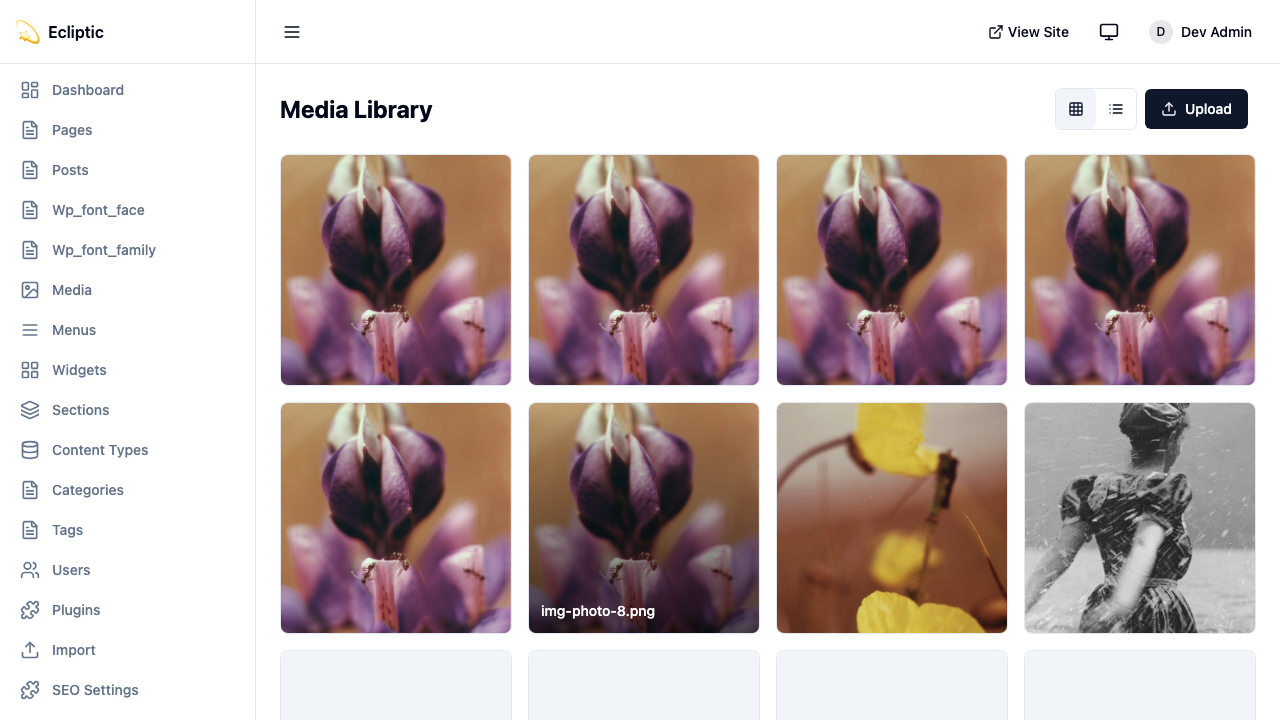
Open the media library from the admin sidebar by clicking Media. The library displays all uploaded files with previews, filenames, and upload dates.
Uploading Files
From the Media Library
-
Click Media in the admin sidebar
-
Click Upload or drag files onto the upload area
-
Select one or more files from your computer
-
Wait for uploads to complete
From the Content Editor
-
In the rich text editor, click the image button
-
Click Upload in the media picker
-
Select a file from your computer
-
Add alt text and click Insert
Supported File Types
EmDash supports common web file types:
| Category | Extensions |
|---|---|
| Images | .jpg, .jpeg, .png, .gif, .webp, .avif, .svg |
| Documents | .pdf, .doc, .docx, .xls, .xlsx, .ppt, .pptx |
| Video | .mp4, .webm, .mov |
| Audio | .mp3, .wav, .ogg |
Storage Backends
EmDash supports multiple storage backends. Configure storage in your Astro config:
Local Storage
import { defineConfig } from "astro/config";
import emdash, { local } from "emdash/astro";

export default defineConfig({
  integrations: [
    emdash({
      storage: local({
        directory: "./uploads",
        baseUrl: "/_emdash/api/media/file",
      }),
    }),
  ],
});
Files are stored in the ./uploads directory. Suitable for development and single-server deployments.
Cloudflare R2
import { defineConfig } from "astro/config";
import emdash from "emdash/astro";
import { r2 } from "@emdash-cms/cloudflare";

export default defineConfig({
  integrations: [
    emdash({
      storage: r2({
        binding: "MEDIA_BUCKET",
        publicUrl: "https://media.example.com",
      }),
    }),
  ],
});
Requires an R2 bucket configured in wrangler.jsonc:
{
	"r2_buckets": [
		{
			"binding": "MEDIA_BUCKET",
			"bucket_name": "my-media-bucket",
		},
	],
}
S3-Compatible
import { defineConfig } from "astro/config";
import emdash, { s3 } from "emdash/astro";

export default defineConfig({
  integrations: [
    emdash({
      storage: s3({
        endpoint: "https://s3.amazonaws.com",
        bucket: "my-media-bucket",
        accessKeyId: process.env.S3_ACCESS_KEY_ID,
        secretAccessKey: process.env.S3_SECRET_ACCESS_KEY,
        region: "us-east-1",
        publicUrl: "https://media.example.com",
      }),
    }),
  ],
});
Works with Cloudflare R2 (via S3 API), MinIO, and other S3-compatible services.
How Uploads Work
EmDash uses signed URLs for secure uploads:
-
Client requests an upload URL from the API
-
Server generates a signed URL with expiration
-
Client uploads directly to storage using the signed URL
-
Server records the file metadata in the database
This approach keeps large files off your application server and enables direct uploads to cloud storage.
Organizing Media
Folders
Create folders to organize your media:
-
Click New Folder in the media library
-
Enter a folder name
-
Click Create
-
Drag files into folders to organize them
Search
Use the search box to find files by name. Search matches partial filenames.
Filters
Filter media by:
- Type - Images, Documents, Video, Audio
- Date - Upload date range
- Folder - Specific folder
Using Media in Content
In the Rich Text Editor
-
Place your cursor where you want the image
-
Click the image button in the toolbar
-
Select an image from the media library or upload a new one
-
Enter alt text
-
Click Insert
As a Featured Image
-
Open a content entry in the editor
-
Find the Featured Image field in the sidebar
-
Click Select Image
-
Choose from the media library or upload
-
Click Save
In Custom Fields
For fields configured as image or file types, click the field to open the media picker.
Displaying Media in Templates
Access media URLs from your content data:
---
import { getEmDashEntry } from "emdash";

const { entry: post } = await getEmDashEntry("posts", Astro.params.slug);
---

{post?.data.featured_image && (
  <img
    src={post.data.featured_image}
    alt={post.data.featured_image_alt ?? ""}
  />
)}
Responsive Images
For EmDash media fields, use the Image component from emdash/ui:
---
import { Image } from "emdash/ui";
import { getEmDashEntry } from "emdash";

const { entry: post } = await getEmDashEntry("posts", Astro.params.slug);
---

{post?.data.featured_image && (
  <Image
    image={post.data.featured_image}
    width={800}
    height={450}
    priority
  />
)}
priority is for the primary above-the-fold image. It sets loading="eager" and fetchpriority="high": loading controls whether loading is deferred, and fetchpriority gives the browser a priority hint for the request.
Deleting Media
-
Select the file(s) you want to delete
-
Click Delete
-
Confirm the deletion
Media API
Access media programmatically using the admin API.
Upload a File
Upload media as multipart form data:
POST /_emdash/api/media
Content-Type: multipart/form-data
Authorization: Bearer YOUR_API_TOKEN

file=<binary file data>
A successful upload returns the stored media item:
{
	"success": true,
	"data": {
		"item": {
			"id": "01ABC123",
			"filename": "hero-image.jpg",
			"mime_type": "image/jpeg",
			"storage_key": "media/abc123/hero-image.jpg",
			"width": 1200,
			"height": 800
		}
	}
}
List Media
The following request lists media under a prefix:
GET /_emdash/api/media?prefix=images/&limit=20
Authorization: Bearer YOUR_API_TOKEN
Delete Media
The following request deletes a stored file:
DELETE /_emdash/api/media/images/hero.jpg
Authorization: Bearer YOUR_API_TOKEN
Media Providers
In addition to local storage, EmDash supports external media providers for specialized image and video hosting. Media providers appear as tabs in the media picker, letting editors choose from multiple sources.
Available Providers
Cloudflare Images
Cloudflare Images provides image hosting with automatic optimization, resizing, and format conversion.
import { defineConfig } from "astro/config";
import emdash from "emdash/astro";
import { cloudflareImages } from "@emdash-cms/cloudflare";

export default defineConfig({
  integrations: [
    emdash({
      // ... database, storage config
      mediaProviders: [
        cloudflareImages({
          accountId: import.meta.env.CF_ACCOUNT_ID,
          apiToken: import.meta.env.CF_IMAGES_TOKEN,
          // Optional: custom delivery domain
          deliveryDomain: "images.example.com",
        }),
      ],
    }),
  ],
});
Features:
- Browse and upload images directly from the admin
- Automatic image optimization and format conversion
- URL-based transformations (resize, crop, format)
- Flexible variants for responsive images
Cloudflare Stream
Cloudflare Stream provides video hosting with HLS/DASH adaptive streaming.
import { defineConfig } from "astro/config";
import emdash from "emdash/astro";
import { cloudflareStream } from "@emdash-cms/cloudflare";

export default defineConfig({
  integrations: [
    emdash({
      // ... database, storage config
      mediaProviders: [
        cloudflareStream({
          accountId: import.meta.env.CF_ACCOUNT_ID,
          apiToken: import.meta.env.CF_STREAM_TOKEN,
          // Optional: player settings
          controls: true,
          autoplay: false,
          loop: false,
        }),
      ],
    }),
  ],
});
Features:
- Browse, search, and upload videos from the admin
- HLS and DASH adaptive streaming
- Automatic thumbnail generation
- Direct upload for large files
Using Multiple Providers
You can configure multiple providers. Each appears as a tab in the media picker:
import { defineConfig } from "astro/config";
import emdash from "emdash/astro";
import { cloudflareImages, cloudflareStream } from "@emdash-cms/cloudflare";

export default defineConfig({
  integrations: [
    emdash({
      database: d1({ binding: "DB" }),
      storage: r2({ binding: "MEDIA" }),
      mediaProviders: [
        cloudflareImages({
          accountId: import.meta.env.CF_ACCOUNT_ID,
          apiToken: import.meta.env.CF_IMAGES_TOKEN,
        }),
        cloudflareStream({
          accountId: import.meta.env.CF_ACCOUNT_ID,
          apiToken: import.meta.env.CF_STREAM_TOKEN,
        }),
      ],
    }),
  ],
});
The local media library (“Library” tab) is always available alongside any configured providers.
Rendering Provider Media
Use the Image component to render media:
---
import { Image } from "emdash/ui";
import { getEmDashEntry } from "emdash";

const { entry: post } = await getEmDashEntry("posts", Astro.params.slug);
---

{post?.data.featured_image && (
  <Image
    image={post.data.featured_image}
    width={800}
    height={450}
  />
)}
The component automatically:
- Detects the provider from the stored value
- Renders an optimized
<img>element - Applies provider-specific optimizations (e.g., Cloudflare Images transformations)
MediaValue Type
Media fields store a MediaValue object containing provider information:
interface MediaValue {
  provider?: string;    // Provider ID, defaults to "local"
  id: string;           // Provider-specific ID
  src?: string;         // Direct URL (for local media or plain-string values)
  previewUrl?: string;  // Preview URL for admin display (external providers)
  filename?: string;    // Original filename
  mimeType?: string;    // MIME type
  width?: number;       // Image/video width
  height?: number;      // Image/video height
  alt?: string;         // Alt text
  meta?: Record<string, unknown>; // Provider-specific metadata
}
This allows EmDash to render media correctly regardless of where it’s hosted.
Next Steps
- Working with Content - Use media in your content
- Create a Blog - Add images to blog posts
- Querying Content - Display media in templates