This guide walks you through creating your first EmDash site, from installation to publishing your first post.
Prerequisites
- Node.js v22.12.0 or higher (odd-numbered versions are not supported)
- npm, pnpm, or yarn
- A code editor (VS Code recommended)
Create a New Project
npm
npm create emdash@latestpnpm
pnpm create emdash@latestyarn
yarn create emdashFollow the prompts to name your project and set up your preferences.
Start the Development Server
-
Navigate to your project directory:
cd my-emdash-site -
Install dependencies:
npm install -
Start the dev server:
npm run dev -
Open your browser to
http://localhost:4321
Complete the Setup Wizard
When you first visit the admin panel, EmDash’s Setup Wizard guides you through initial configuration:
-
Navigate to
http://localhost:4321/_emdash/admin -
You’ll be redirected to the Setup Wizard. Enter:
- Site Title — Your site’s name
- Tagline — A short description
- Admin Email — Your email address
-
Click Create Site to register your passkey
-
Your browser will prompt you to create a passkey using Touch ID, Face ID, Windows Hello, or a security key
Once your passkey is registered, you’re logged in and redirected to the admin dashboard.
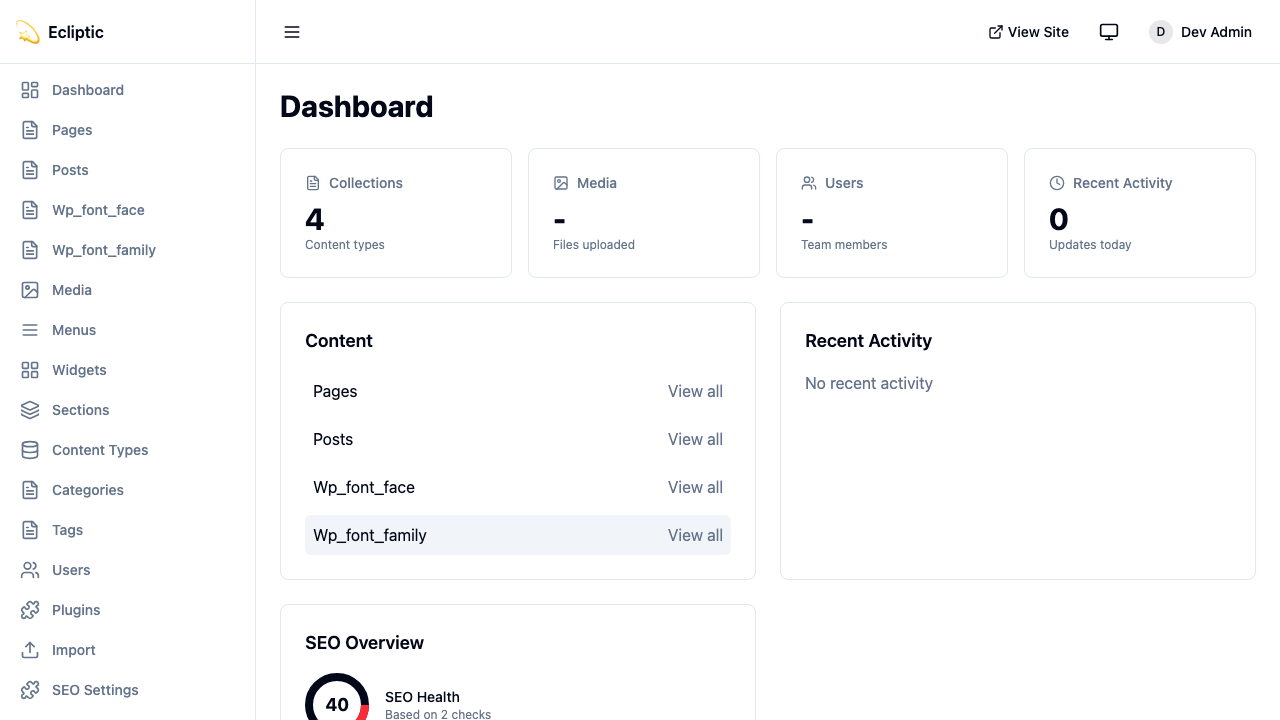
Your First Post
-
In the admin sidebar, click Posts under Content.
-
Click New Post.
-
Enter a title and write some content using the rich text editor.
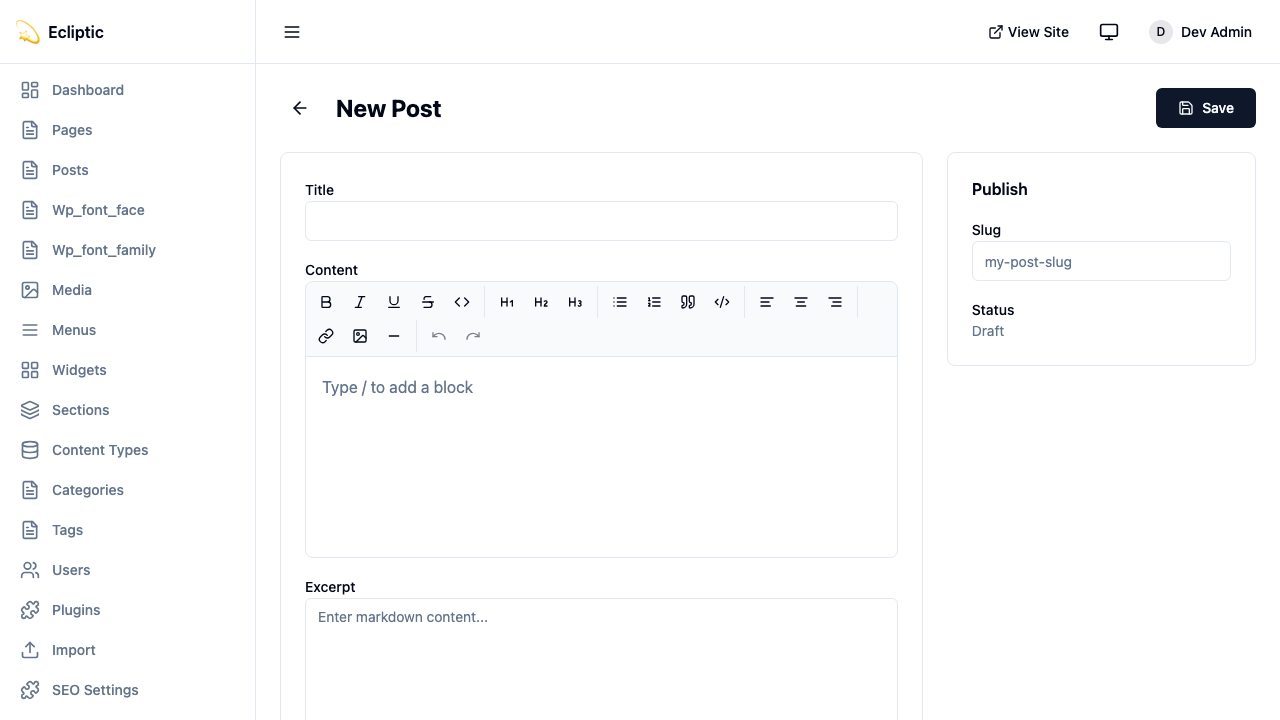
-
Set the status to Published and click Save.
-
Visit your site’s homepage to see your post live—no rebuild needed!
Project Structure
Your EmDash project follows a standard Astro structure with a few additions:
my-emdash-site/
├── astro.config.mjs      # Astro + EmDash configuration
├── src/
│   ├── live.config.ts    # Live Collections configuration
│   ├── pages/
│   │   ├── index.astro   # Homepage
│   │   └── posts/
│   │       └── [...slug].astro  # Dynamic post pages
│   ├── layouts/
│   │   └── Base.astro    # Base layout
│   └── components/       # Your Astro components
├── .emdash/
│   ├── seed.json         # Template seed file
│   └── types.ts          # Generated TypeScript types
└── package.json
Configuration Files
astro.config.mjs
This configures EmDash as an Astro integration:
import { defineConfig } from "astro/config";
import emdash, { local } from "emdash/astro";
import { sqlite } from "emdash/db";

export default defineConfig({
	integrations: [
		emdash({
			database: sqlite({ url: "file:./data.db" }),
			storage: local({
				directory: "./uploads",
				baseUrl: "/_emdash/api/media/file",
			}),
		}),
	],
});
src/live.config.ts
This connects EmDash to Astro’s content system:
import { defineLiveCollection } from "astro:content";
import { emdashLoader } from "emdash/runtime";

export const collections = {
	_emdash: defineLiveCollection({ loader: emdashLoader() }),
};Environment Variables
For production deployments, you’ll need to set:
# Required for authentication
EMDASH_AUTH_SECRET=your-secret-here

# Optional: for content preview
EMDASH_PREVIEW_SECRET=your-preview-secret
Generate a secure auth secret with:
npx emdash auth secretQuery Content in Pages
Use EmDash’s query functions in your Astro pages. These follow Astro’s live collections pattern, returning { entries, error } for collections and { entry, error } for single entries:
---
import { getEmDashCollection } from "emdash";
import Base from "../layouts/Base.astro";

const { entries: posts } = await getEmDashCollection("posts");
---

<Base title="Home">
  <h1>Latest Posts</h1>
  <ul>
    {posts.map((post) => (
      <li>
        <a href={`/posts/${post.slug}`}>{post.data.title}</a>
      </li>
    ))}
  </ul>
</Base>
For single entries:
---
import { getEmDashEntry } from "emdash";

const { slug } = Astro.params;
const { entry: post } = await getEmDashEntry("posts", slug);

if (!post) {
  return Astro.redirect("/404");
}
---

<h1>{post.data.title}</h1>
Generate TypeScript Types
For full type safety, generate types from your database schema:
npx emdash typesThis creates .emdash/types.ts with interfaces for all your collections. Your editor will now autocomplete field names and catch type errors.
Next Steps
You now have a working EmDash site! Here’s where to go next:
- Core Concepts — Understand how EmDash works under the hood
- Working with Content — Learn to query and render content
- Media Library — Upload and manage images and files
- Create a Blog — Build a complete blog with categories and tags
- Deploy to Cloudflare — Take your site to production