このガイドでは、インストールから最初の投稿の公開まで、最初の EmDash サイトの作成手順を説明します。
前提条件
- Node.js v22.16.0 以上(奇数バージョンはサポートされていません)
- npm、pnpm、または yarn
- コードエディター(VS Code 推奨)
新しいプロジェクトを作成
npm
npm create emdash@latestpnpm
pnpm create emdash@latestyarn
yarn create emdashプロンプトに従ってプロジェクト名を入力し、設定を行います。
開発サーバーを起動
-
プロジェクトディレクトリに移動:
cd my-emdash-site -
依存関係をインストール:
npm install -
開発サーバーを起動:
npm run dev -
ブラウザで
http://localhost:4321を開く
セットアップウィザードを完了
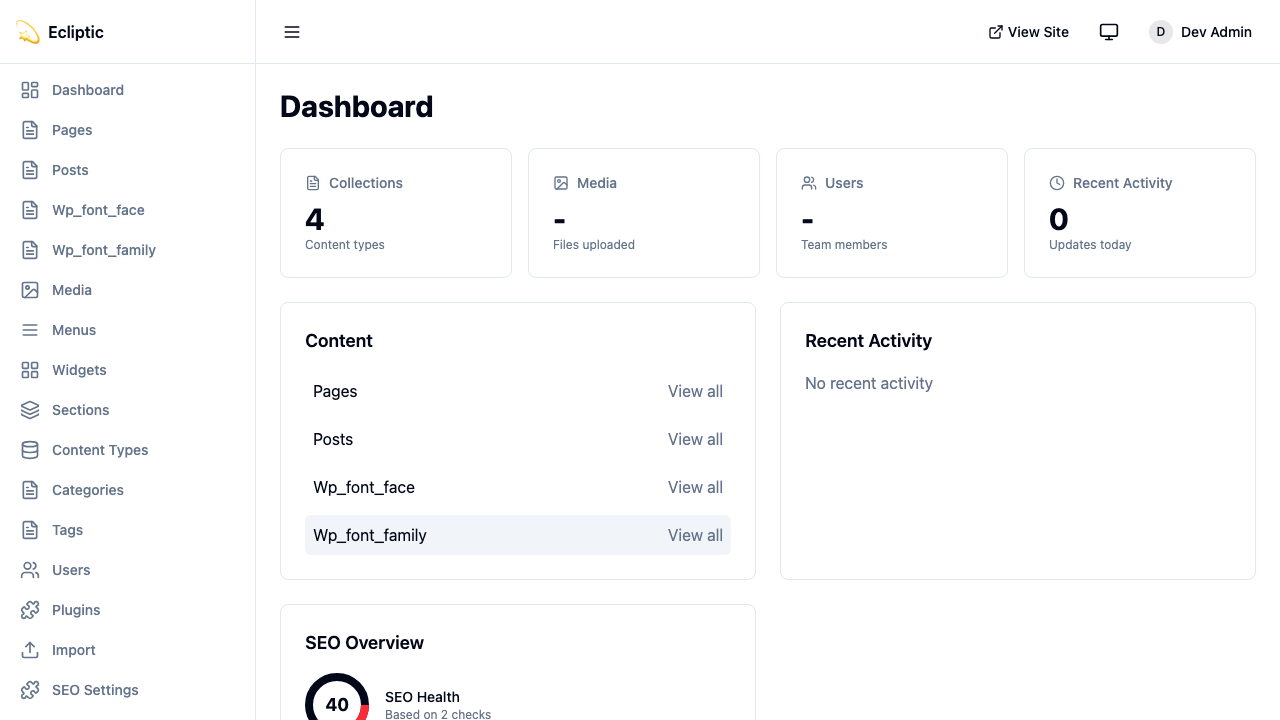
管理パネルに初めてアクセスすると、EmDash のセットアップウィザードが初期設定を案内します:
-
http://localhost:4321/_emdash/adminにアクセス -
セットアップウィザードにリダイレクトされます。以下を入力:
- サイトタイトル — サイトの名前
- タグライン — 短い説明
- 管理者メール — メールアドレス
-
Create Site をクリックしてパスキーを登録
-
ブラウザが Touch ID、Face ID、Windows Hello、またはセキュリティキーを使用してパスキーの作成を求めます
パスキーが登録されると、ログインして管理ダッシュボードにリダイレクトされます。
最初の投稿
-
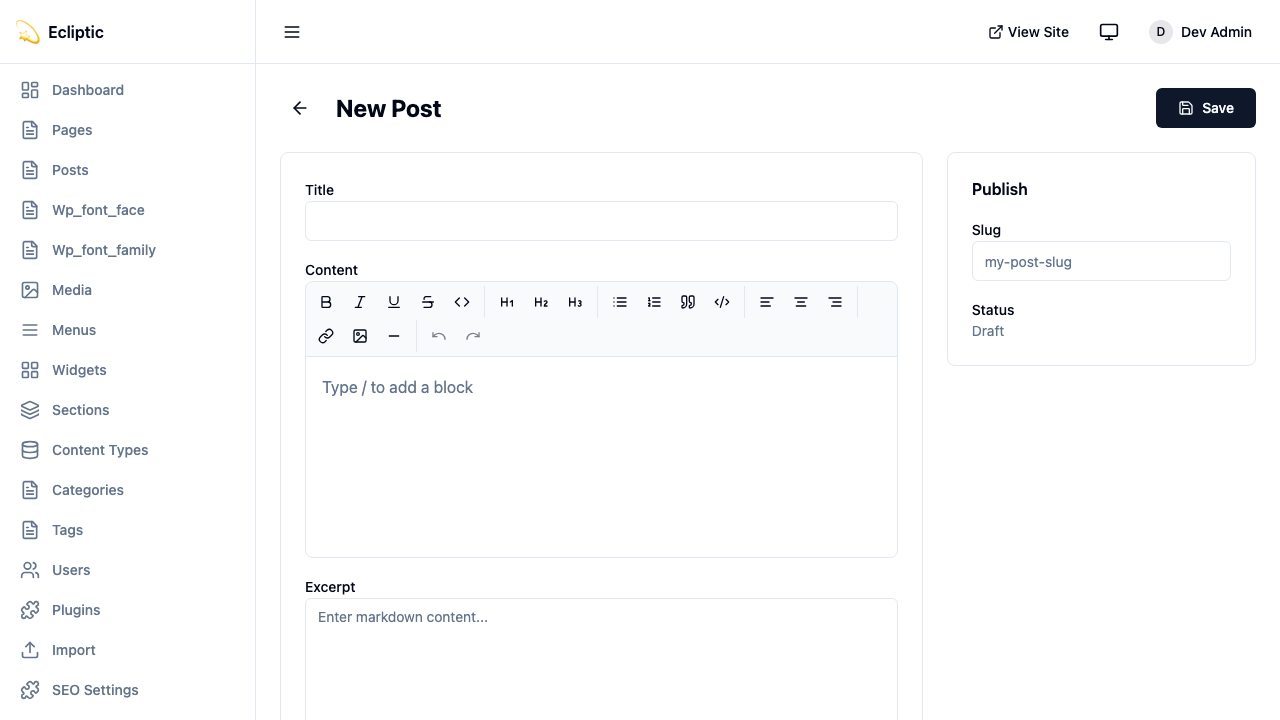
管理サイドバーのコンテンツの下にある Posts をクリック。
-
New Post をクリック。
-
タイトルを入力し、リッチテキストエディターでコンテンツを書く。
-
ステータスを Published に設定して Save をクリック。
-
サイトのホームページにアクセス。投稿がすぐに表示されます。
プロジェクト構造
EmDash プロジェクトは標準的な Astro 構造にいくつかの追加があります:
my-emdash-site/
├── astro.config.mjs      # Astro + EmDash 設定
├── src/
│   ├── live.config.ts    # Live Collections 設定
│   ├── pages/
│   │   ├── index.astro   # ホームページ
│   │   └── posts/
│   │       └── [...slug].astro  # 動的投稿ページ
│   ├── layouts/
│   │   └── Base.astro    # ベースレイアウト
│   └── components/       # Astro コンポーネント
├── .emdash/
│   ├── seed.json         # テンプレートシードファイル
│   └── types.ts          # 生成された TypeScript 型
└── package.json
設定ファイル
astro.config.mjs
以下の設定はローカル SQLite データベースとローカルファイルストレージで EmDash を Astro インテグレーションとして登録します:
import { defineConfig } from "astro/config";
import react from "@astrojs/react";
import emdash, { local } from "emdash/astro";
import { sqlite } from "emdash/db";

export default defineConfig({
	integrations: [
		react(), // 必須 — 管理 UI は React アプリです
		emdash({
			database: sqlite({ url: "file:./data.db" }),
			storage: local({
				directory: "./uploads",
				baseUrl: "/_emdash/api/media/file",
			}),
		}),
	],
});
src/live.config.ts
以下のファイルは単一の Live Collection を通じて EmDash を Astro のコンテンツシステムに接続します:
import { defineLiveCollection } from "astro:content";
import { emdashLoader } from "emdash/runtime";

export const collections = {
	_emdash: defineLiveCollection({ loader: emdashLoader() }),
};環境変数
本番環境では、以下のコマンドでプラグインシークレット用の暗号化キーを生成します:
npx emdash secrets generate生成された値を EMDASH_ENCRYPTION_KEY として環境に追加します(下記参照)。このキーはプラグインシークレットを保存時に暗号化します。プラグインシークレット暗号化が使用する準備ができるよう、今すぐ設定してください。
EMDASH_ENCRYPTION_KEY=emdash_enc_v1_...キーはデータベースには保存されません — 暗号化された暗号文のみが保存されます。耐久性のある場所にバックアップしてください。失うとそれで暗号化されたすべてのシークレットを失います。
プレビュー HMAC シークレットとコメンター IP ハッシュソルトは最初の使用時に生成されデータベースに保存されるので、設定する必要はありません。別のプロセスがメインサイトと同じトークンを検証する必要がある場合にのみ、プレビューシークレットをオーバーライドしてください(下記参照)。
EMDASH_PREVIEW_SECRET=your-preview-secretページでコンテンツをクエリ
EmDash のクエリ関数を Astro ページで使用します。これらは Astro の Live Collections パターンに従い、コレクションには { entries, error } を、単一エントリには { entry, error } を返します:
---
import { getEmDashCollection } from "emdash";
import Base from "../layouts/Base.astro";

const { entries: posts } = await getEmDashCollection("posts");
---

<Base title="Home">
  <h1>最新の投稿</h1>
  <ul>
    {posts.map((post) => (
      <li>
        <a href={`/posts/${post.slug}`}>{post.data.title}</a>
      </li>
    ))}
  </ul>
</Base>
以下のページは slug で単一のエントリを取得します:
---
import { getEmDashEntry } from "emdash";

const { slug } = Astro.params;
const { entry: post } = await getEmDashEntry("posts", slug);

if (!post) {
  return Astro.redirect("/404");
}
---

<h1>{post.data.title}</h1>
TypeScript 型を生成
完全な型安全性のために、データベーススキーマから型を生成します:
npx emdash typesこれにより、すべてのコレクションのインターフェースを含む .emdash/types.ts が作成されます。エディターがフィールド名を自動補完し、型エラーを検出するようになります。
次のステップ
サイトが稼働したら、以下のページで次に何をすべきかを確認してください:
- コアコンセプト — EmDash の内部動作を理解する
- コンテンツの操作 — コンテンツのクエリとレンダリングを学ぶ
- メディアライブラリ — 画像とファイルのアップロードと管理
- ブログを作成 — カテゴリとタグ付きの完全なブログを構築
- Cloudflare にデプロイ — サイトを本番環境へ